
Consul (one-click actions)
- Click the Consul tab at the top of the interface.
- Scroll through the list of pre-bundled scripts.
- Click a script entry to execute it. The entry will highlight in green to indicate that the script is currently active or has been triggered.
- To deactivate or "unclick" a script, simply click the highlighted entry again.
Usage Notes
- Highlighting: When a script is active or has been triggered, the entry will highlight in green.
- Toggle: Click the highlighted entry again to deactivate it.
Tooltip Preview
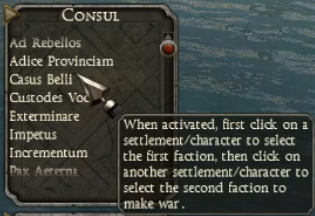
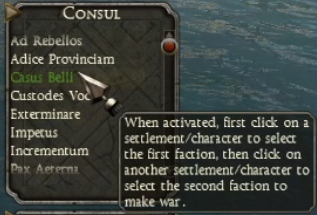
Hover your mouse over any script in the list to reveal its full usage instructions.
How It Works
When you click a Consul entry, that script becomes active. While active, it listens for game events such as selecting a settlement or a character, and then executes its action when that event happens. If the script is not active, it does nothing. Clicking the same entry again turns the script off.
Available Scripts
To view the list of available scripts, see Consul Scripts.
Custom Scripts
To learn how to add custom scripts, see How to add a Consul Script.